
Prologue:
Welcome back! If you’ve made it to Part 4, you’ve built a sailboat game and a full game with variables and clones in Scratch. That means you already know how to think like a programmer. Seriously, give yourself a pat on the back.
Remember in Part 1 when I said you’d be ready for a “real” programming language after a couple of Scratch projects? Well, that day is here. In this post, we’re moving from Scratch to Python.
Here’s the good news: you don’t have to start over. Almost every Scratch block you’ve used has a Python twin. Today I’ll show you how to set up Python, write your first program, and translate the Scratch blocks you already know into Python code.
Let’s begin.
Chapter 1: What is Python?
Python is a text-based programming language. Instead of dragging blocks around, you type your code. That might sound scary, but Python was designed to be easy to read. A lot of Python code reads almost like English.
Python is also one of the most popular programming languages in the world. People use it to build websites, analyze data, control robots, and create artificial intelligence. I even used Python to train the AI model in my own phishing-detection research. So the stuff you learn today is the same stuff real programmers use every day.
Now you might be thinking, “Hold up Raeef, if Python is so great, why did you make me learn Scratch first?”
Because Scratch taught you the ideas: variables, loops, if/else, and events. Python just uses different words for the same ideas. Think back to my alphabet example from Part 1. You’ve learned the letters, and now you’re learning to write sentences.
Chapter 2: How do you use Scratch?
With Scratch, you just opened a website. Python needs one extra step: a place to write and run your code. You have two options.
Option A: Install Python (best for home computers)
- Go to the official Python website: https://www.python.org/downloads/
- Download the latest version for your computer (Windows or Mac) and run the installer. The default options are fine.
- Once it’s installed, open a program called IDLE. On Windows, search for “IDLE” in the Start menu. On a Mac, look in your Applications folder inside the Python folder.
IMPORTANT NOTE:
Ask a parent or guardian before installing anything on your computer!
IDLE comes free with Python, and it’s where we’ll write our code today.
Option B: Use an online editor (best for school Chromebooks)
If you can’t install programs on your computer, you can write Python right in your browser. Go to Programiz’s free online Python editor: https://www.programiz.com/python-programming/online-compiler/
You type your code in the box on the left and click Run. Your program’s output shows up on the right.
Writing a program in IDLE
When IDLE opens, you’ll see a window called the Shell. The Shell runs one line at a time, which is great for quick tests. But for real programs, we want a file we can save, just like saving a Scratch project.
- Click File > New File. A blank window will pop up. This is your code editor.
- Click File > Save and name your file something like my_first_program.py. The .py at the end tells your computer it’s a Python file.
- Whenever you want to run your code, click Run > Run Module, or press F5. This is Python’s version of the green flag!
Chapter 3: Your first Python program
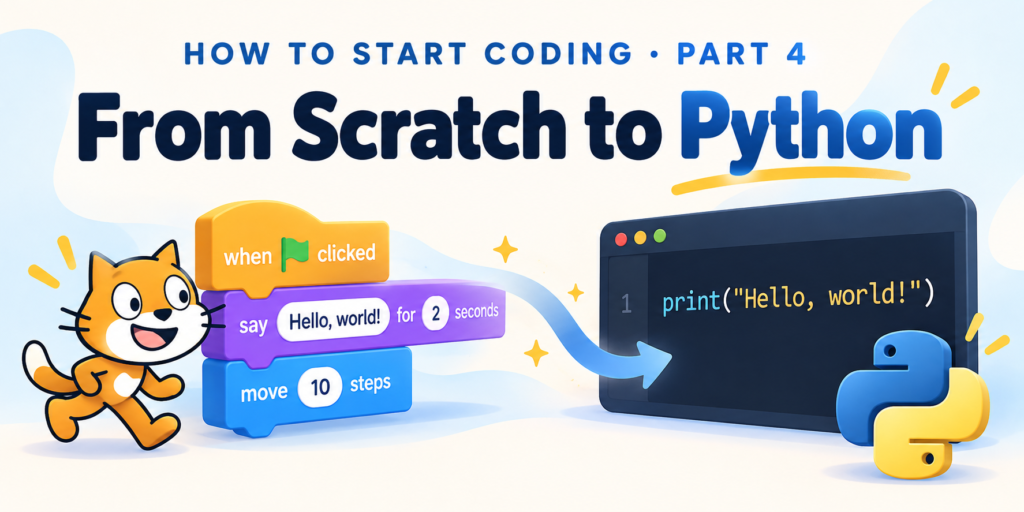
In Scratch, if you wanted the cat to talk, you’d use the say [Hello!] block from “Looks”. In Python, we use print(). Type this into your new file:
print("Hello, world!")
Now press F5 to run it. You should see Hello, world! appear in the Shell window.
Congrats, you just wrote your first Python program! Let’s break down what’s going on:
printis a function. Think of it like a block that does one job. Its job is to show text on the screen.- The parentheses
( )hold whatever you’re giving to the function. They work like the white bubble inside a Scratch block where you type stuff. - The quotation marks
" "tell Python thatHello, world!is text. In coding, text is called a string.
Your first bug
Now let’s break something on purpose. Change print to Print with a capital P and run it again:
Print("Hello, world!")
Uh oh. You should see some scary red text that ends like this:
NameError: name 'Print' is not defined. Did you mean: 'print'?
Don’t panic! This is called an error message, and it’s actually your friend. Python is telling you it doesn’t know any function called Print. It even suggests the fix: print with a lowercase p.
This is a big difference from Scratch. In Scratch, the blocks are already spelled for you, so you can’t make typos. In Python, spelling and capital letters matter. print and Print are two different things to Python. Whenever you get an error, read the last line first. It usually tells you exactly what went wrong.
Change it back to print and run it again to fix your first bug!
Chapter 4: Future steps
Nice work! You’ve set up Python, written your first program, and squashed your first bug. In Part 5 of the “How to Start Coding” series, we’ll translate the Scratch blocks you already know (variables, ask and wait, if/else, and loops) into Python. Then we’ll use all of them to build a rocket-launch countdown program.
Until then, keep playing around with print()! Try printing your name, your favorite food, or a joke. And if you are feeling up to it, see what happens when you leave out a quotation mark, then read the error message to figure out what went wrong.
If you have any questions, feel free to contact me!