
Prologue:
Welcome back! In Part 4, you set up Python, wrote your first program with print(), and fixed your very first bug. If you haven’t read Part 4 yet, go do that first, because you’ll need Python set up for this one.
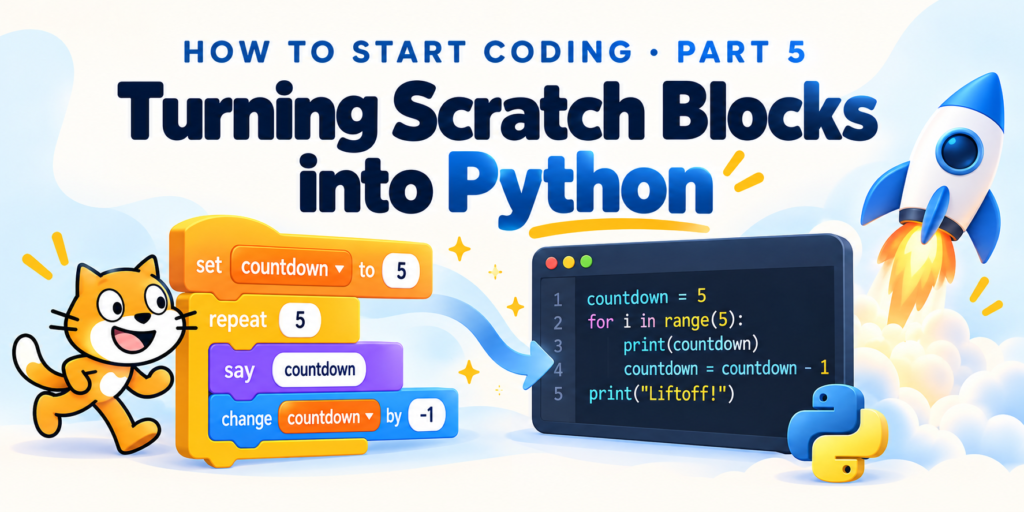
Today is where your Scratch skills really pay off. Almost every Scratch block you’ve used has a Python twin. We’re going to translate the blocks you already know (variables, questions, if/else, and loops) into Python code. Then we’ll use all of them to build a small program together.
Let’s begin.
Chapter 1: Translating Scratch blocks into Python
Let’s go through the blocks you used in Parts 2 and 3 and see what they look like in Python.
Variables
In Part 3, you made a variable to keep score. In Scratch, you used set [score] to (0) and change [score] by (1). In Python, it looks like this:
score = 0score = score + 1print(score)
Run it and you’ll see 1. The = sign doesn’t mean “equals” like in math class. It means “store this value in this variable.” So score = score + 1 means “take the current score, add 1, and store it back in score.”
Also notice that in Python, you don’t need to click a “Make a Variable” button. Just type a name and give it a value, and Python creates it for you.
Asking questions
Remember the ask [What’s your name?] and wait block and the blue answer block from “Sensing”? In Python, both of those are one line:
name = input("What's your name? ")print("Hello, " + name + "!")
input() shows your question, waits for the user to type something and press Enter, and then stores the answer in the variable name. The + signs glue strings together, just like the join block in Scratch.
If/else
Here’s the if <> then / else block in Python:
age = input("How old are you? ")
if age > 10:print("You're a coding veteran!")else:print("Starting young, nice!")
Two things to notice. First, the if line ends with a colon :. Second, the lines inside the if and else are pushed to the right with 4 spaces. This is called indentation, and it’s Python’s version of the C-shaped blocks in Scratch. Anything indented under the if is “inside” it, just like blocks tucked inside a C-block.
If you forget to indent, Python will complain with an IndentationError. Lucky for you, IDLE usually indents automatically after you type a colon and press Enter.
Now run the code and type in your age. Did you get another scary red error? You should see this at the bottom:
TypeError: '>' not supported between instances of 'str' and 'int'
Time to debug! Python is saying it can’t compare a str (a string, or text) with an int (an integer, or whole number). Here’s the problem: input() always gives you back text, even if the user types a number. So Python sees “12”, not 12, and it doesn’t know how to check if text is bigger than a number.
The fix is to wrap input() in int(), which turns the text into a number:
age = int(input("How old are you? "))
Run it again and it should work. Scratch handled this for you behind the scenes, but in Python you have to tell it what you want.
Loops
The repeat (10) block becomes a for loop:
for i in range(3):print(i)
This prints:
012
Wait, why does it start at 0 and not 1? In Python (and most programming languages), counting starts at 0. So range(3) gives you 0, 1, and 2. That’s still 3 numbers, so the loop still repeats 3 times. The variable i just keeps track of which round of the loop you’re on.
The forever block becomes while True.
while True:print("This never stops!")
Be careful with this one, because it really never stops! In IDLE, press Ctrl+C to stop it.
Chapter 2: Putting it all together!
Let’s use everything we learned to build a small program that greets you and launches your coding career with a rocket countdown. Open a new file, save it as liftoff.py, and type this in:
name = input("What's your name? ")
print("Hi, " + name + "! Welcome to Python!")

age = int(input("How old are you? "))

if age > 12:
    print("Nice! You're old enough to be a teen coder.")
else:
    print("Wow, starting young! You're going to be a pro.")

print("Launching your coding career in...")

countdown = 5
for i in range(5):
    print(countdown)
    countdown = countdown - 1

print("Liftoff!")
IMPORTANT NOTE
I recommend typing the code yourself instead of copying and pasting. Typing it is how your brain actually learns it!
Press F5 to run it!
Look at all the Scratch ideas hiding in there:
input()is yourask and waitblock.nameandageare variables storing the answers.+is yourjoinblock.ifandelsedecide which message to show.- The
forloop repeats 5 times, printing the countdown and lowering it by 1 each round, just likechange [countdown] by (-1).
If you got an error, don’t worry. Read the last line of the error message, check your spelling, and make sure your colons and indents are in the right places. Debugging is a normal part of coding, even for professional programmers!
Chapter 3: Future Steps
Congrats! You now know how to use variables, questions, if/else, and loops in a real, text-based programming language. That’s a huge step, and you did it by building on everything you learned in Scratch.
In Part 6 of the “How to Start Coding” series, we’ll use Python to build our first game: a number-guessing game where the computer picks a secret number and you try to guess it.
Until then, here’s a challenge for you:
CHALLENGE
Change
liftoff.pyso it asks the user what number to count down from, instead of always starting at 5. Hint: you’ll needinput(),int(), and a variable insiderange().
If you get stuck or have any questions, feel free to contact me! And leave a comment below telling me how your liftoff program turned out.